Self-Hosting Plane with Hetzner Object Storage: A Complete Setup Guide
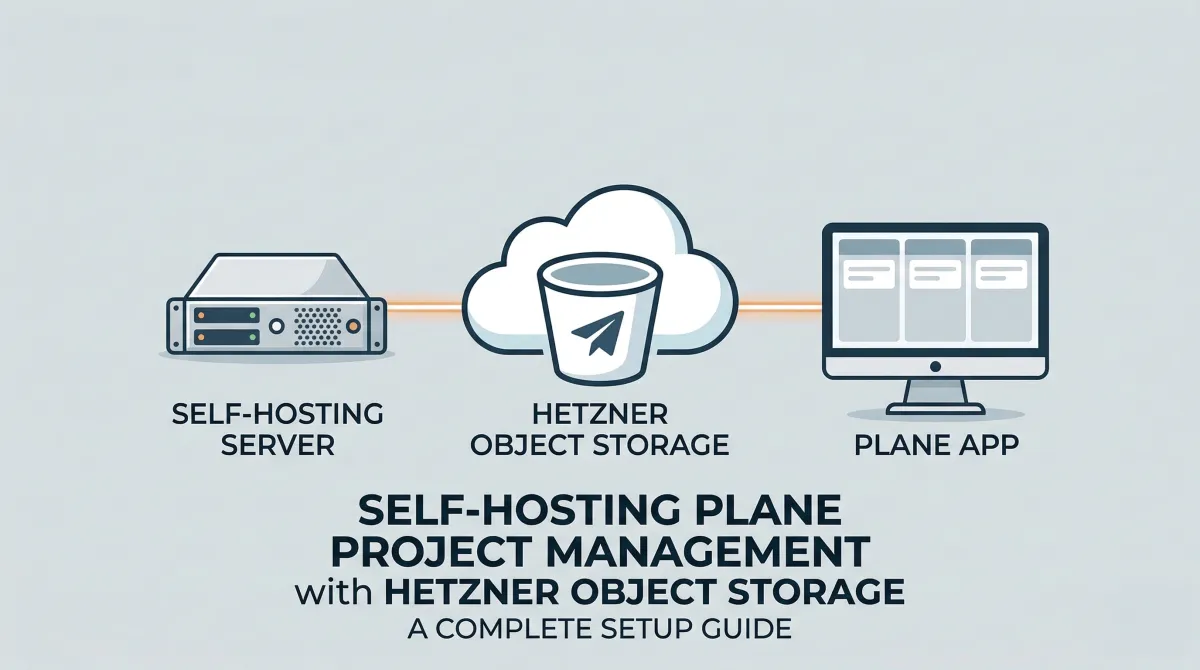
If you're looking for a solid, open-source project management tool that you can self-host — Plane is one of the best options out there. It's clean, fast, and does most of what you'd expect from tools like Jira or Linear, without the subscription fatigue.
I recently deployed Plane v1.2.3 for our company using Docker Compose, and decided to use Hetzner Object Storage as the S3-compatible backend instead of the default MinIO instance that ships with Plane. This post walks through the entire setup — including the gotchas that cost me a few hours of debugging.
Why Hetzner Object Storage?
Plane uses an S3-compatible object store for file uploads — project cover images, attachments, avatars, and so on. The default setup bundles a MinIO container, which works fine for testing but adds overhead in production. Hetzner's Object Storage is cheap, S3-compatible, and already part of our infrastructure, so it made sense to consolidate.
Prerequisites
Before you start, make sure you have:
- A server (I used a Hetzner cloud instance) with Docker and Docker Compose installed
- A domain pointed to your server's IP (I used
projects.mentormerlin.org) - A Hetzner Object Storage bucket created (mine was
mentormerlininternalin thefsn1region) - Your Hetzner Object Storage access key and secret key
Step 1: Configure the Environment File
Plane ships with a plane.env file that controls everything. Here are the critical changes you need to make.
Set your domain and SSL
APP_DOMAIN=projects.yourdomain.com
For SSL, Plane's proxy uses Caddy under the hood. The CERT_EMAIL variable has a specific format that Caddy expects — and this one tripped me up:
# WRONG - will crash the proxy container
[email protected]

# CORRECT - Caddy needs the 'email' keyword prefix
CERT_EMAIL=email [email protected]
Also set:
CERT_ACME_CA=https://acme-v02.api.letsencrypt.org/directory
SITE_ADDRESS=projects.yourdomain.com
And update URLs to HTTPS:
WEB_URL=https://${APP_DOMAIN}
CORS_ALLOWED_ORIGINS=https://${APP_DOMAIN}
Point storage to Hetzner
USE_MINIO=0
AWS_REGION=fsn1
AWS_ACCESS_KEY_ID=your-hetzner-access-key
AWS_SECRET_ACCESS_KEY=your-hetzner-secret-key
AWS_S3_ENDPOINT_URL=https://fsn1.your-objectstorage.com
AWS_S3_BUCKET_NAME=mentormerlininternal
MINIO_ENDPOINT_SSL=1
The important bits:
USE_MINIO=0tells Plane to skip the built-in MinIO and use an external S3-compatible store.AWS_S3_ENDPOINT_URLshould be the base Hetzner endpoint for your region — not your bucket-specific URL.MINIO_ENDPOINT_SSL=1because Hetzner serves over HTTPS.
Generate proper secrets
Don't go to production with the default keys. Generate new ones:
openssl rand -hex 32
Use the output for both SECRET_KEY and LIVE_SERVER_SECRET_KEY in your env file.
Step 2: Update docker-compose.yaml
Since we're using Hetzner instead of MinIO, comment out or remove the plane-minio service entirely:
  # COMMENTED OUT - Using Hetzner Object Storage instead
  # plane-minio:
  #   image: minio/minio:latest
  #   command: server /export --console-address ":9090"
  #   ...
Everything else in the compose file stays the same.
Step 3: Configure the Hetzner Bucket
This is the part that isn't documented anywhere and will silently break your setup. Plane will successfully upload files to your bucket, but then fail to read them back — you'll see errors like "Failed to upload cover image" even though the files are sitting right there in your bucket.
You need to do two things: set a public read policy and configure CORS.
Install and configure s3cmd
apt install s3cmd -y
s3cmd --configure
During configuration:
- Access Key / Secret Key: Your Hetzner credentials
- S3 Endpoint:
fsn1.your-objectstorage.com - DNS-style bucket+hostname:
%(bucket)s.fsn1.your-objectstorage.com - Use HTTPS: Yes
Set the bucket to public read
First, make existing objects readable:
s3cmd setacl s3://mentormerlininternal --acl-public --recursive
Then create a bucket-policy.json so that future uploads are also publicly readable:
{
  "Version": "2012-10-17",
  "Statement": [
    {
      "Sid": "PublicRead",
      "Effect": "Allow",
      "Principal": "*",
      "Action": "s3:GetObject",
      "Resource": "arn:aws:s3:::mentormerlininternal/*"
    }
  ]
}
Apply it:
s3cmd setpolicy bucket-policy.json s3://mentormerlininternal
Set CORS policy
Create a cors.xml file:
<CORSConfiguration>
  <CORSRule>
    <AllowedOrigin>https://projects.yourdomain.com</AllowedOrigin>
    <AllowedMethod>GET</AllowedMethod>
    <AllowedMethod>PUT</AllowedMethod>
    <AllowedMethod>POST</AllowedMethod>
    <AllowedMethod>DELETE</AllowedMethod>
    <AllowedHeader>*</AllowedHeader>
  </CORSRule>
</CORSConfiguration>
Apply it:
s3cmd setcors cors.xml s3://mentormerlininternal
Verify it's working
s3cmd info s3://mentormerlininternal
You can also try hitting one of the uploaded files directly in your browser. You should get the file content instead of a 403.
Step 4: Deploy
Make sure your env file is named .env and sits in the same directory as your docker-compose.yaml. Then:
docker compose up -d
Watch the logs to make sure everything comes up clean:
docker compose logs -f proxy
docker compose logs -f api
The proxy container should show Caddy obtaining your SSL certificate automatically. Give it a minute, then hit your domain in the browser.
Recap of Gotchas
Here's a quick summary of the things that bit me so you can avoid them:
CERT_EMAILneeds theemailprefix — Caddy's Caddyfile syntax requiresemail [email protected], not just the bare address. Without it, the proxy container crashes in a restart loop with "unrecognized global option."- The env file must be named
.env— If you're using a different filename, docker-compose won't pick it up unless you explicitly pass--env-file. - Uploads succeed but reads fail — The bucket needs a public read policy AND a CORS policy. Without these, Plane writes files just fine but the browser can't load them back, resulting in misleading "Failed to upload" errors.
USE_MINIO=0andMINIO_ENDPOINT_SSL=1— Both need to be set when using an external HTTPS-based S3 store.- Use HTTPS in
WEB_URLandCORS_ALLOWED_ORIGINS— If you have SSL enabled but these still sayhttp://, you'll get mixed content issues.
Final Thoughts
Plane is a genuinely good project management tool for teams that want to self-host. Pairing it with Hetzner Object Storage instead of the bundled MinIO gives you a cleaner, more production-ready setup with less resource overhead. The initial configuration has some rough edges, but once it's running, it's solid.
If you run into issues or have questions, drop a comment below or reach out — happy to help.
Comments ()